
Whispersync is Amazon’s feature that keeps your reading and listening progress in sync across every Kindle device, Kindle reading app, and Audible app on your account. It also has a sibling feature called Whispersync for Voice, which lets you switch between reading the ebook and listening to the audiobook without losing your place.
If you’ve been searching for “Whispersync settings” or “how to turn on Whispersync for Kindle,” here is the updated walkthrough.
How to turn on device synchronization (Whispersync) for Kindle
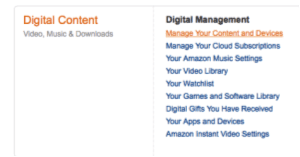
- Go to Manage Your Content and Devices at amazon.com/hz/mycd/myx (or open the Amazon mobile app and tap Account → Account Settings → Content and Devices).
- Sign in if prompted.
- Click the Preferences tab at the top of the page.
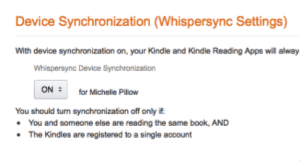
- Scroll to Device Synchronization (Whispersync Settings) and make sure it is set to ON.
- Save changes if Amazon prompts you to.
Once Whispersync is enabled, every Kindle device and Kindle reading app on your account will share furthest page read, bookmarks, highlights, and notes.

Whispersync for Voice: how to switch between Kindle and Audible
If a book has both a Kindle edition and a companion Audible audiobook, Whispersync for Voice lets you read on your phone or Kindle, then pick up audio narration in the Audible app exactly where you left off, and vice versa. The audiobook must be a “Whispersync for Voice-ready” title on Amazon, and you generally need to own both the Kindle and Audible editions on the same Amazon account.
Looking for Pillow audiobooks?
Michelle M. Pillow audiobooks are available on Audible, Spotify, Chirp, Apple Books, Kobo Audiobooks, Google Play, and libro.fm. See the full audiobooks page for narrator details and direct buy links.
For full technical support on Whispersync, contact Amazon Customer Service.
Article by Michelle M. Pillow. Copyright (c) Michelle M. Pillow, michellepillow.com. Updated 2026.